
Receiving Your W-2 Electronically
To receive your W-2 electronically, you must make the election before December 31. Your election will remain in effect for future years until you opt out.
Go Paperless
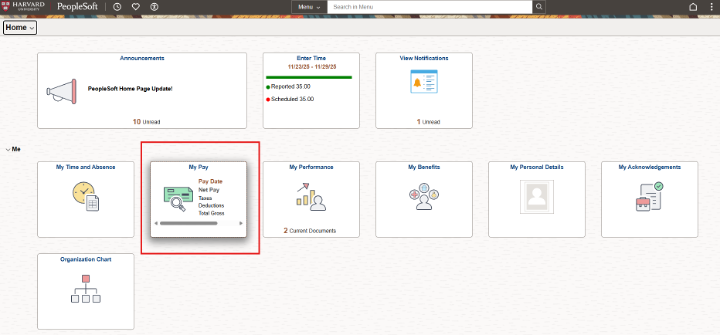
Log in to PeopleSoft and click on “My Pay.”
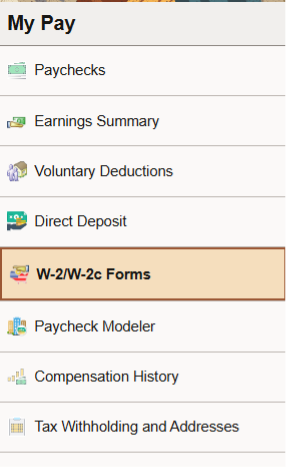
Select “W-2/W-2c Forms” on the left side of the screen.
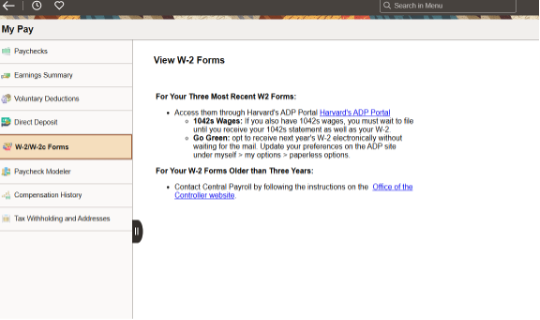
Click on the “Harvard’s ADP Portal” link to leave PeopleSoft and open the ADP portal.
In the ADP portal, go to your profile in the upper right side of the screen and select “Settings.”
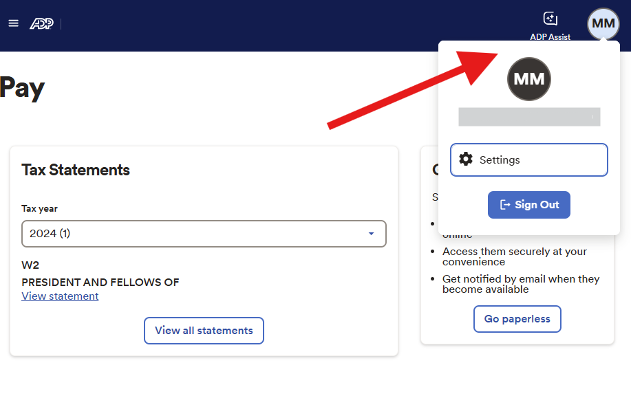
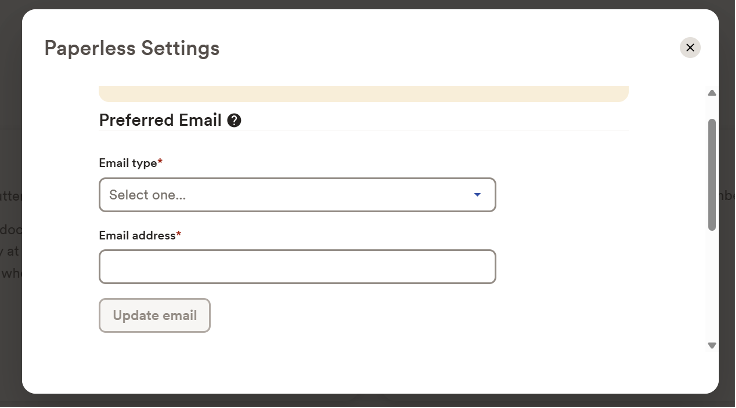
Select “Go Paperless” in the tile on the left side of the screen. A “Paperless Settings” pop-up will appear.

Enter your email address. Select the “Email Type” first, then complete the “Email Address” field. When finished, click “Update email.” You must enter an email address before continuing; otherwise, you will receive an error message. You may use either a personal or work email address.
- Under “Tax statements,” toggle on the options in this order:
- First: Turn on “Receive paperless statements.”
This must be done first.
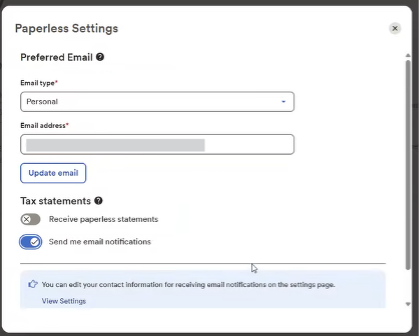
- Second: Turn on “Send me email notifications.”
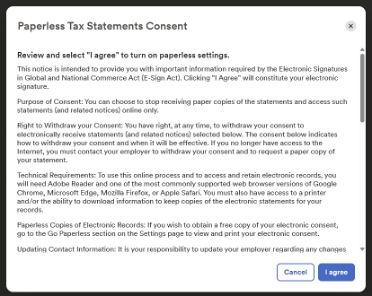
- When you toggle this on, a consent acknowledgement box will appear.
- Select “I agree.”
After you agree, the “Send me email notifications” toggle becomes locked and can no longer be changed.
You will receive an email confirmation from adpfeedback@adp.com with the subject "Paper W-2 Elimination Confirmation" to verify that your settings have been updated.